
Starting a WordPress Hosting in 2026 is easier, faster, and more affordable than it has ever been. Whether you want to launch an online store, build a personal brand, or create a home for your business, WordPress remains the most flexible and beginner-friendly way to get there. Better yet, you can do it without writing a single line of code or hiring an expensive developer.
However, the moment you search “best WordPress hosting,” you run into a frustrating problem. You will find hundreds of videos and blog posts, and nearly all of them tell you something different. Most of these reviews aren’t useful, not because the information is necessarily wrong, but because the rankings are biased. The company that lands in the number one spot is almost always the one that paid the highest affiliate commission.
After more than ten years of building websites and testing nearly every major hosting company out there, including Bluehost, HostGator, GoDaddy, and WP Engine, I kept coming back to the same conclusion. There is one option that consistently delivers on speed, reliability, and price.
So, in this guide, I’ll show you exactly how to set up your WordPress hosting from scratch, step by step. Along the way, you’ll also learn how to get a free domain, a free email, and hosting that’s genuinely fast without draining your budget. Let’s dive in.
- Why Most Hosting Reviews Can't Be Trusted
- The Hosting Company Worth Recommending
- Choosing the Right Hosting Plan
- Installing WordPress (Easier Than You Think)
- Picking Your Free Domain Name
- Designing Your Website
- Choosing Plugins (and Why to Install Manually)
- Customizing and Launching Your Store
- From Website to Real Business: Where the Passion Product Formula Comes In
- Final Thoughts: Your First Step Toward Building Online
- Frequently Asked Questions
Why Most Hosting Reviews Can’t Be Trusted

Before we get into the setup, it’s worth understanding why so much hosting advice online falls flat. The truth is that affiliate payouts drive most “best hosting” lists rather than actual performance. In other words, the company willing to pay reviewers the most money tends to climb to the top of the rankings, regardless of whether it’s the best fit for you.
This doesn’t necessarily mean those reviews contain lies. Instead, they simply lean in a skewed direction. A host might be perfectly fine, yet it gets recommended over a faster, cheaper, more reliable option purely because of the commission structure behind the scenes. As a result, beginners end up overpaying for slow, clunky hosting that makes the whole experience harder than it should be.
Therefore, my goal here is different. Rather than chasing the biggest payout, I want to point you toward what actually works based on real, hands-on experience. After all, the foundation you choose now will affect how smoothly everything else goes.
Now that you know what to watch out for, let’s talk about the solution.
The Hosting Company Worth Recommending
After testing all the big names over the years, I consistently recommend Hostinger. There are several clear reasons for this. First, it’s genuinely fast, which matters enormously for both user experience and search rankings. Second, the customer support is solid, so you’re never left stranded when a question comes up. Third, the uptime sits comfortably above 99.9%, meaning your site stays online when your customers come looking.
On top of all that, Hostinger ranks as one of the most affordable options available. You get premium-level performance without the premium price tag, which makes it an ideal starting point for beginners and growing businesses alike.
To sweeten the deal even further, I went ahead and negotiated a special rate so you can get the best possible price. When you click the link below and use coupon code Travis, you’ll unlock an extra 10% off on top of their existing discounts. That’s the lowest rate you’re likely to find anywhere online.
With your hosting choice made, let’s walk through the setup together.
Choosing the Right Hosting Plan
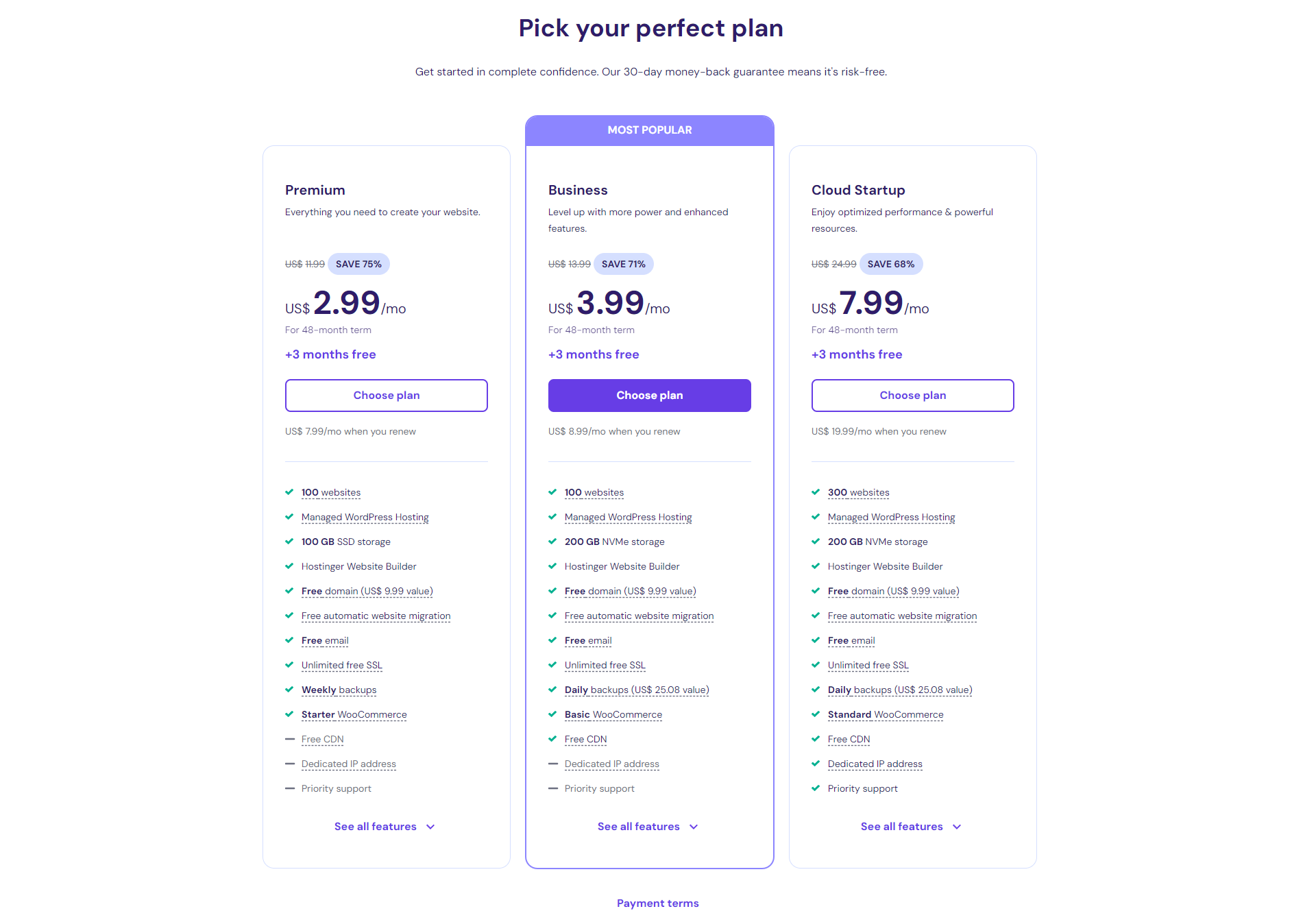
Once you click through to Hostinger and hit “Start Now,” you’ll see three different plans: the Premium plan, the Business plan, and the Cloud Startup plan. While each has its place, I recommend that most people go with the Business plan. The reasoning is simple and practical.
Specifically, the Business plan gives you more storage, better performance, and daily backups included. Those backups matter far more than most beginners realize. For example, imagine you spend three days carefully building your site, adding products, and getting everything just right. Then suddenly, something breaks. With daily backups, you simply roll back to yesterday’s version and carry on. That feature alone makes the plan worth it.
Next, when you scroll down, you’ll notice the pricing changes depending on how long you sign up for. Here’s a helpful pro tip: the longer the plan you choose, the cheaper it becomes per month. Consequently, the 48-month plan delivers the best overall value. Not only does it lock you in at the lowest rate, but Hostinger often throws in extra months for free.
Finally, don’t forget to apply coupon code Travis for that additional 10% off. After that, just enter your details, complete the payment, and you’ve officially set up your hosting. Once you select your plan, the next step is wonderfully simple.
Installing WordPress (Easier Than You Think)
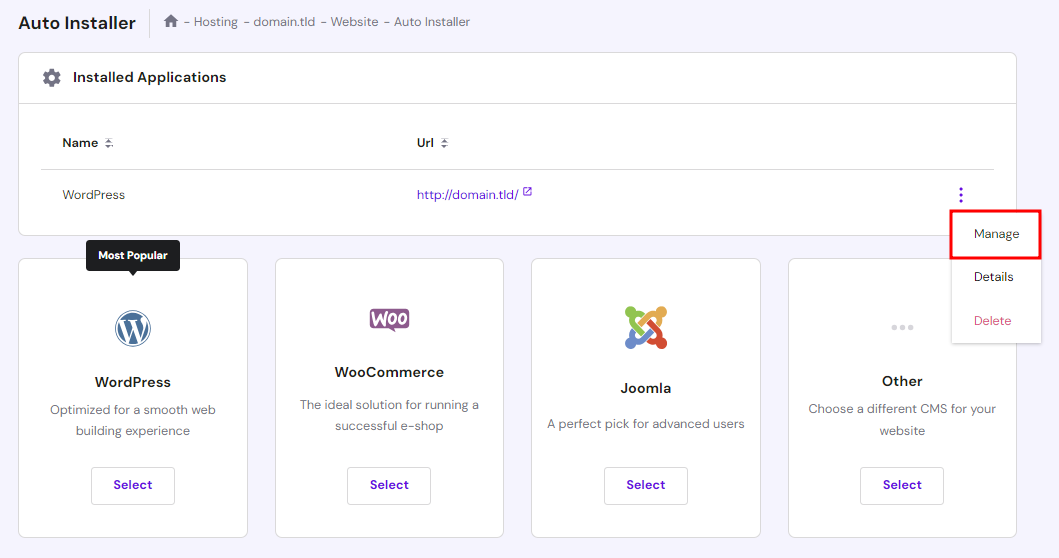
Here’s the part most people assume will be complicated, yet it really isn’t. Hostinger makes installing WordPress remarkably easy. Once you’re inside your dashboard, you’ll see the option to set up WordPress, and this step actually transforms your hosting into a real, functioning website. Without it, you simply have empty space on the internet with nothing to show anyone.
After you click that option, Hostinger walks you through a few quick questions. Then it asks whether you’re creating a brand-new site or migrating an existing one. If you’re starting fresh, just click “Create” and keep moving. From there, you’ll choose how you want to build the site, and you’ll see options like WordPress hosting with AI or the Hostinger website builder.
Personally, I always go with standard WordPress. It’s more flexible, which becomes especially valuable if you ever want to grow your site into something bigger down the road. In short, choosing WordPress hosting now keeps your options wide open later.
After that, you’ll set up your WordPress login. Keep in mind that this login differs from your Hostinger account login, since it controls the actual website itself. Simply enter your email, create a password, and you’re ready for the next step. After you create your login, it’s time to claim your web address.
Picking Your Free Domain Name

Your domain name is your website’s address, similar to something like clovetea.com. With Hostinger, you get this domain for free, which saves you anywhere from $15 to $150 depending on the extension. That’s a meaningful saving right out of the gate, so be sure to take advantage of it.
When choosing your domain, go with the .com version if it’s available, since people still recognize and trust it the most. However, if someone has already taken your preferred .com, don’t worry. You can use alternatives like .store or .online, both of which work beautifully. In fact, .store works especially well for e-commerce because people immediately understand they can buy something there. So if someone already grabbed clovetea.com, clovetea.store would make a great alternative.
That said, don’t get stuck on this step. Honestly, most people aren’t typing URLs directly into their browsers anymore. Instead, they simply Google your brand name and click the result. Therefore, the smartest move is to pick something clean, memorable, and easy to spell, and then move forward confidently.
With your domain secured, the fun part begins — designing your site.
Designing Your Website
Before the design step, Hostinger will ask about your target audience. Since I’m based in the United States and most of my customers live there too, I’d select the US. This small detail helps optimize performance and relevance for the people most likely to visit your site, so choose whichever region fits your audience best.
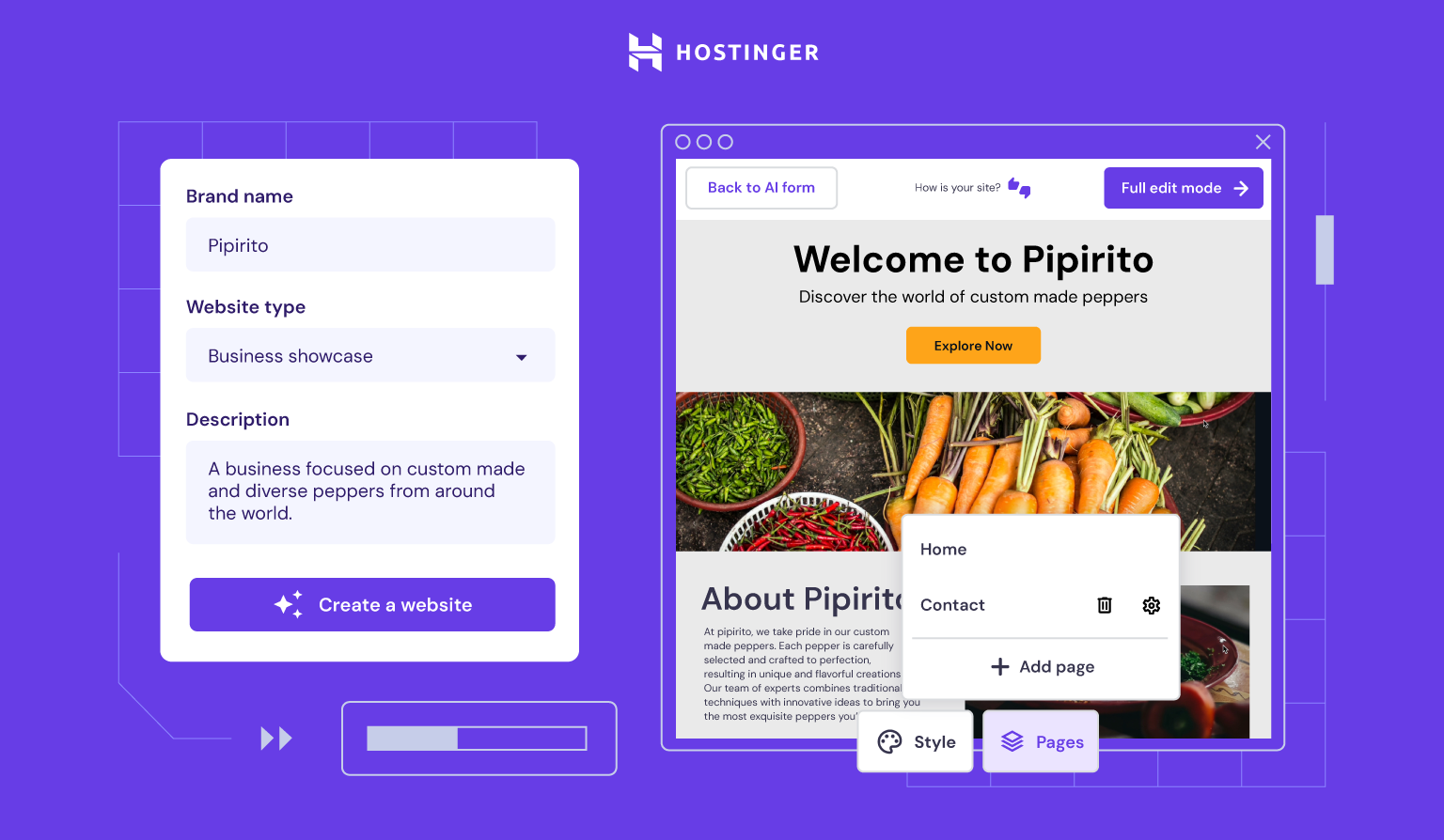
Next comes the design step, where you decide how your site will actually look. You can either start from scratch or pick a template. Almost every time, I recommend going with a template because it saves an enormous amount of time and gives you a polished starting point. Rather than staring at a blank page, you begin with something that already looks professional.
Importantly, nothing locks you in. You can change the layout, the colors, the images, and pretty much everything else later on. Because of this flexibility, there’s really no reason to overthink the decision. Just pick a template that’s close to what you have in mind and keep moving.
Once you settle on your design, let’s add the tools that make your site powerful.
Choosing Plugins (and Why to Install Manually)
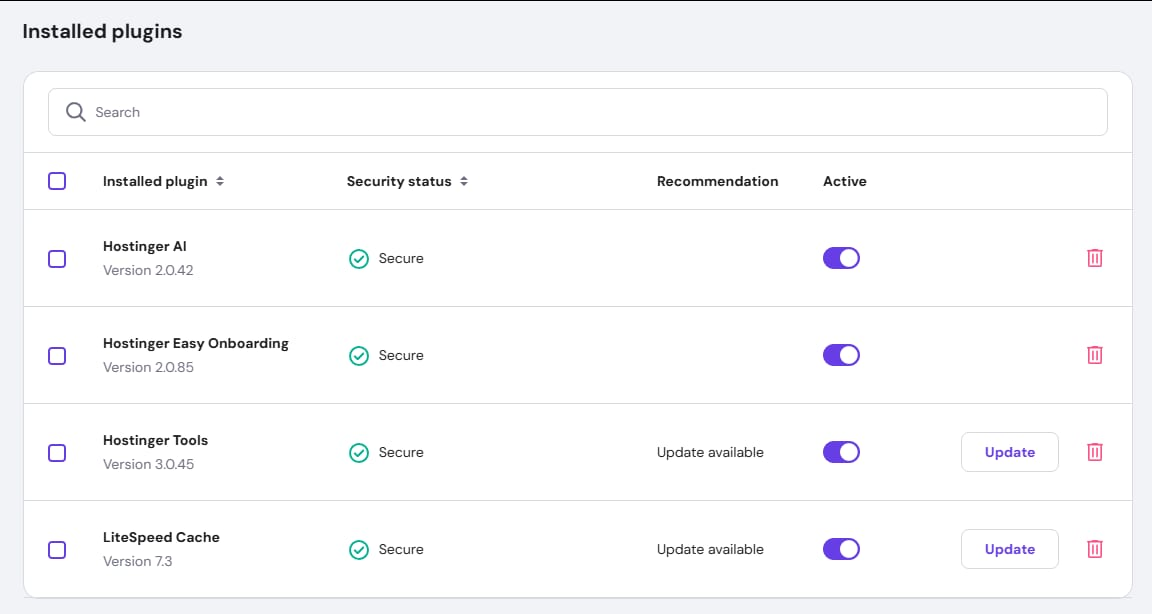
After the design step, you’ll arrive at the plugins. Here’s a tip that genuinely matters: I always select my plugins manually instead of letting the system auto-install everything. The reason is that auto-installing tends to clutter your site with tools you don’t actually need, which can slow things down and create confusion later.
For this example, I’m building a store for a physical product called Clove Tea, which I’m selling directly to customers. Because of that, I’m going to select WooCommerce. This plugin turns your WordPress hosting site into a fully functional online store. With it, you can add products, take payments, and manage orders all from one convenient place.
In short, if you plan to sell anything at all, whether physical goods or digital products, you’ll want WooCommerce. Once you’ve made your selections, Hostinger finishes setting everything up automatically, and you’ll land right inside your dashboard. After you install your plugins, your store is nearly ready to launch.
Customizing and Launching Your Store
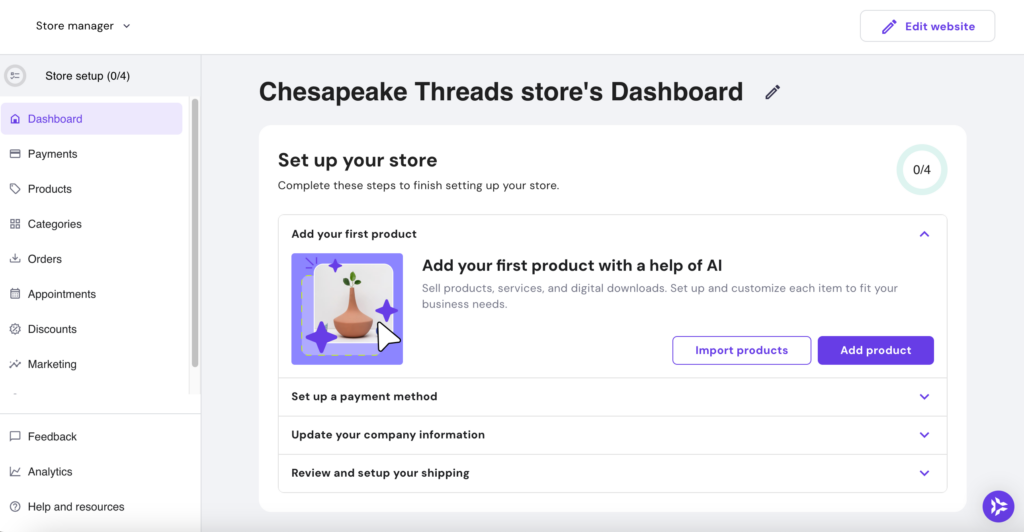
From your dashboard, navigate to WordPress and click “Admin Panel.” This takes you inside your actual website, where the real customization happens. To start shaping the look, go to “Appearance” and then click “Customize.” This is where you make the site truly your own.
Within the customizer, you can adjust your layout, fonts, colors, and just about everything else. Best of all, it works entirely through drag and drop. You simply click on whatever you want to change and adjust it on the spot, with no coding and no technical experience required. As a result, even complete beginners can create something that looks clean and professional.
Since we added WooCommerce, you’ll also find a WooCommerce setup guide right there for your store. This is where you add your product listing, including the name, description, photos, and price. After that, you connect a payment method and configure your shipping options. Once you complete those steps, your store goes live and starts taking orders.
Here’s the part that surprises most people: it’s not complicated at all. You don’t need to code, and you don’t need to hire anyone just to get started. In fact, you can go from zero to a live store in a single day. Now that your store is live, here’s the mindset that turns a website into a real business.
From Website to Real Business: Where the Passion Product Formula Comes In

Building the website, as you’ve just seen, is actually the easy part. The truly important question is what you choose to sell on it. A beautiful, fast, professionally designed store means very little if it doesn’t pair with a product that people genuinely want to buy. Therefore, the next logical step shifts your focus from “I have a store” to “I have a product worth selling.”
This is exactly where the Passion Product Formula comes in. It’s a proven framework designed to help you turn your passion into a profitable physical product business. Instead of guessing what might sell, you follow a clear, step-by-step process covering product research, validation, sourcing, and selling, whether that’s through your new WooCommerce store, on Amazon, or both.
What makes this approach so powerful is that it removes the guesswork that derails most beginners. Rather than launching a random product and hoping for the best, you learn how to identify something you care about that also has real demand. As a result, you build a brand customers connect with, not just another store lost in the crowd.
So once you pair your shiny new website with a smart product strategy, you’re genuinely set up to win. If you’re serious about building something that lasts, the Passion Product Formula is the natural next move after getting your site live.
Final Thoughts: Your First Step Toward Building Online

At this point, you can see just how approachable launching a WordPress hosting in 2026 really is. There’s no coding required, no need for expensive developers, and no reason to spend weeks stuck in setup. With the right hosting, a free domain, and a few simple steps, you can get a real, functioning website up and running faster than you ever expected.
To recap, I confidently recommend Hostinger for its speed, reliability, and affordability. For the best results, sign up for the 48-month plan and apply coupon code Travis to grab that extra 10% off. That combination gives you the strongest deal you’re likely to find anywhere.
Above all, remember that your site doesn’t have to be perfect on day one. The most important thing is getting that first version live, putting it out into the world, and improving it from there. That’s how real progress happens, and that’s how you build successful businesses.
So go ahead, take that first step, and pair it with a product strategy like the Passion Product Formula to create something truly worth building.
Frequently Asked Questions
Do I need any coding or technical experience to build a WordPress website?
Not at all. Modern WordPress setup caters to beginners, and tools like Hostinger‘s dashboard handle the technical heavy lifting for you. Customization works entirely through drag and drop, so you simply click on what you want to change and adjust it. You can build a complete, professional-looking site without ever touching a line of code.
How much does it cost to start a WordPress website in 2026?
The cost stays surprisingly low. Hosting plans remain affordable, especially when you choose a longer term like the 48-month plan, which offers the lowest monthly rate. On top of that, you get a free domain (saving anywhere from $15 to $150), and you can apply coupon code Travis for an extra 10% off. For most beginners, this makes launching a site one of the most budget-friendly business investments available.
Which hosting plan should I choose?
For most people, the Business plan offers the best balance of value and features. It includes more storage, better performance, and daily backups, which protect your hard work if something ever breaks. If you plan to grow or run an online store, this plan gives you plenty of room to scale.
Can I really build an online store in a single day?
Yes. Once you set up your hosting and WordPress hosting, adding WooCommerce turns your site into a fully functional store. From there, you can add products, set prices, connect a payment method, and configure shipping, often within just a few hours. While you’ll continue refining things over time, you can absolutely go from zero to a live store in one day.
What’s the difference between WordPress and the website builder option?
The website builder works quickly and simply, but standard WordPress hosting offers far more flexibility. If you think you might want to expand your site, add advanced features, or grow into a larger business down the road, WordPress makes the smarter long-term choice because it keeps all your options open.
I have a website now, but how do I know what to sell?
This challenge trips up many beginners, and it’s exactly what the Passion Product Formula solves. It walks you through finding a product you’re passionate about that also has genuine market demand, then guides you through validation, sourcing, and selling. Pairing this strategy with your new website sets you up to build a real, lasting business rather than just a storefront.